Take bookings and appointments
Let customers book an appointment on your website, set your services and opening hours, and handle the bookings that come in.
On this page
With the Service bookings app, customers pick a service, a day and a free time on your website and book it. You set the services, your opening hours and, if you like, the people who do the work. Want customers to pay when they book? That uses the Payments app too: see Accept payments.
Add bookings to your website
The easiest way is to ask the AI. It adds the app, your services and a booking page.
- Open the AI chat.
- Under the message box, set the scope to Frontend + Wobbio apps. Read more in AI chat settings.
- Ask for example: “Add a booking page where customers can book a haircut (30 minutes, 25 euro) or a cut and colour (90 minutes, 70 euro). We are open Tuesday to Saturday from 9:00 to 17:00. Add a Book now link in the menu.”
Set up your services
- In the side menu, select Apps, then your booking app. Its window opens on Settings.
- Select Services, then Add service, or Edit next to a service.
- Fill in the Service name, the Duration (minutes) and the Price.
- Need time to get ready or clean up? Fill in Buffer before (minutes) and Buffer after (minutes). Customers can't book in that time.
- Under Auto-confirm bookings, choose Require approval if you want to approve each booking yourself.
- Want to ask customers something when they book? Under Intake fields, select Add field.
- Select Save settings.
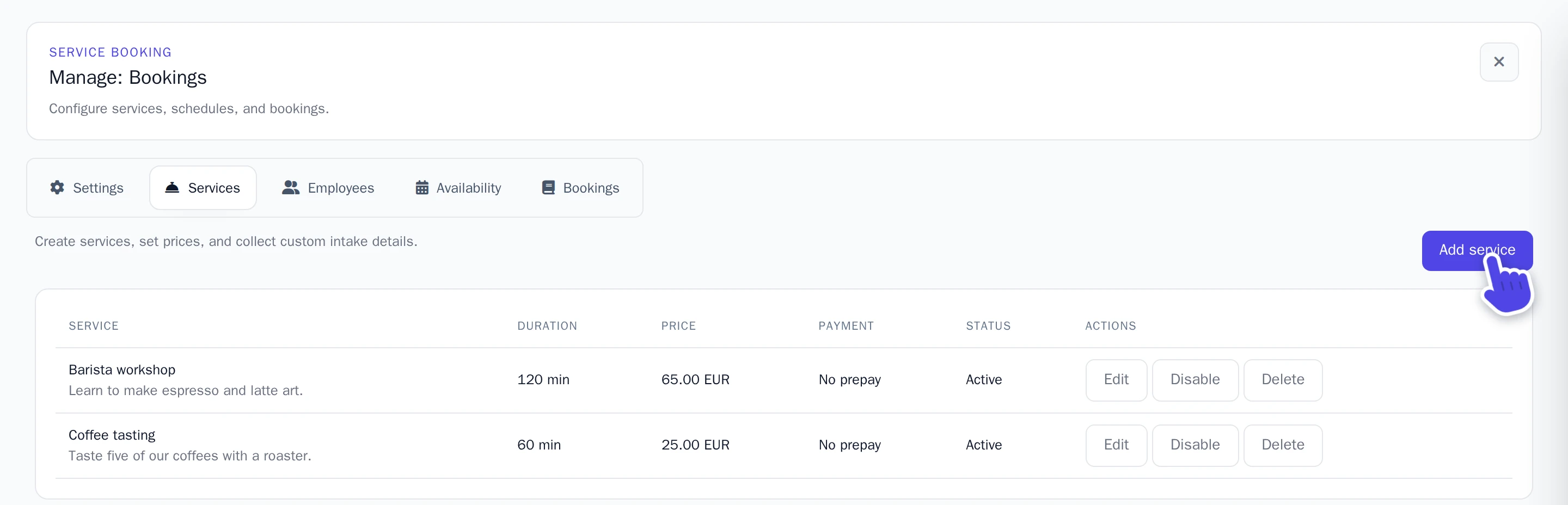
To stop offering a service for a while, select Disable.
Add your staff
Do several people take appointments? On the Employees tab, select Add employee for each one, and tick the services they do under Assigned services. Customers then only get times when someone who does that service is free. Without staff, there is one calendar for everything.
Set your opening hours
Customers can only book in these hours. A new booking app starts with Monday to Friday, 8:00 to 17:00.
- Select Availability.
- Under Weekly availability, leave Employee on Project default.
- Change the times of a day, select Remove next to a day you are closed, or select Add rule for another day, and choose the day and the times.
- Select Save settings.
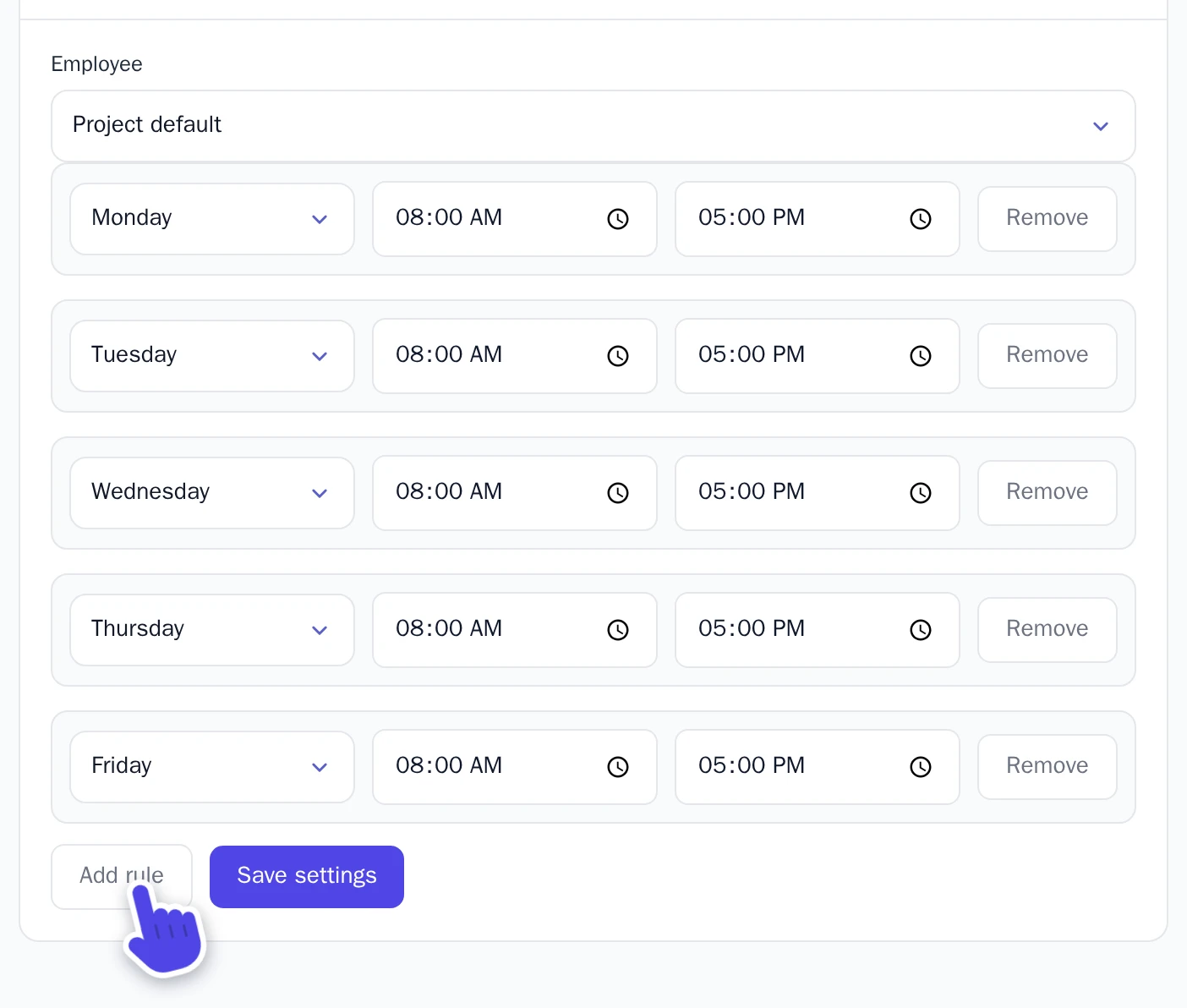
Does someone on your staff work other hours? Choose them under Employee and add their own hours. On a day without their own hours, they follow the default.
Closed on a holiday, or open longer one day? Under Date overrides, choose the date, turn off Available on this date or range to close, and select Add override. For a holiday of several days, turn on Apply to date range.
Choose your booking rules
On the Settings tab, under Booking defaults:
- Booking window (days): how far ahead customers can book.
- Slot interval (minutes): 15 shows the times 9:00, 9:15, 9:30 and so on.
- Allow customer cancellations and Allow customer rescheduling: customers can cancel or move an upcoming booking themselves, with the link in their Booking confirmation email. Turn that email on too, and ask the AI to add the page where customers change their booking.
Under Owner notifications, turn on the switch and choose your Notification email to get an email for every booking. Only verified email addresses can be chosen. Turn on Booking confirmation email to email your customers too. Select Save settings when you are done.
Let customers pay when they book
- Set up the Payments app first, as in Accept payments.
- On the Settings tab, turn on the switch next to Payments and save.
- Open a service, turn on Requires prepayment and choose the Prepayment percent: the part of the price customers pay when they book.
Customers pay online through Mollie, or get your bank transfer or cash instructions. The rest of the price, and the whole price of a service without prepayment, isn't paid on your website: you settle it with the customer yourself, for example at the appointment.
Handle your bookings
All bookings are on the Bookings tab. Select Details to open one.
- A booking you have to approve shows Pending approval. Under Booking status, choose Confirmed and select Update. To cancel a booking, choose Canceled.
- To move a booking, choose a new date and time under Reschedule and select Reschedule.
- Paid by bank transfer or cash? The booking shows Pending payment until you have the money. Then select Mark paid.
When a customer cancels a prepaid booking, the money isn't returned automatically. Refund it in your Mollie dashboard, or yourself for a bank transfer, and select Mark refunded for a bank transfer or cash payment.