AI chat settings
Choose whether the AI may make changes, what it may work on and whether it saves a restore point first.
2 min read
Updated 4 Nov 2026
Under the message box of the AI chat you choose how the AI works in the conversation: whether it may make changes, what it may work on, and whether it saves a restore point first. The gear opens all settings.
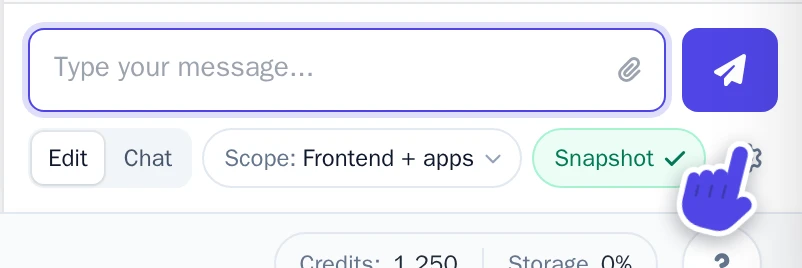
Edit or Chat
- Edit: the AI looks at your project and makes the changes you ask for.
- Chat: the AI only looks and answers. It makes no changes.
What the AI may work on
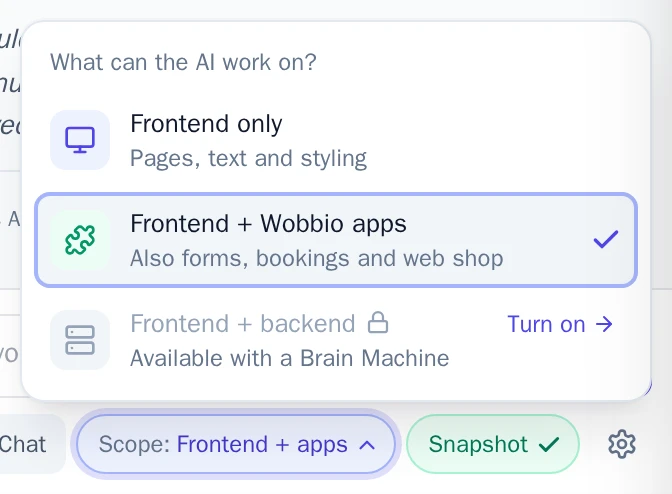
Select the button next to Chat. It shows the current choice. Then choose:
- Frontend only: only pages, text and styling.
- Frontend + Wobbio apps: also Wobbio apps, like forms, bookings and a web shop.
- Frontend + backend: also custom server code and databases. This needs a Brain Machine.
A restore point before each change
Select Snapshot to choose whether the AI saves a restore point before each change. With a Project snapshot, you can go back to the moment before a change in Version history.
All settings
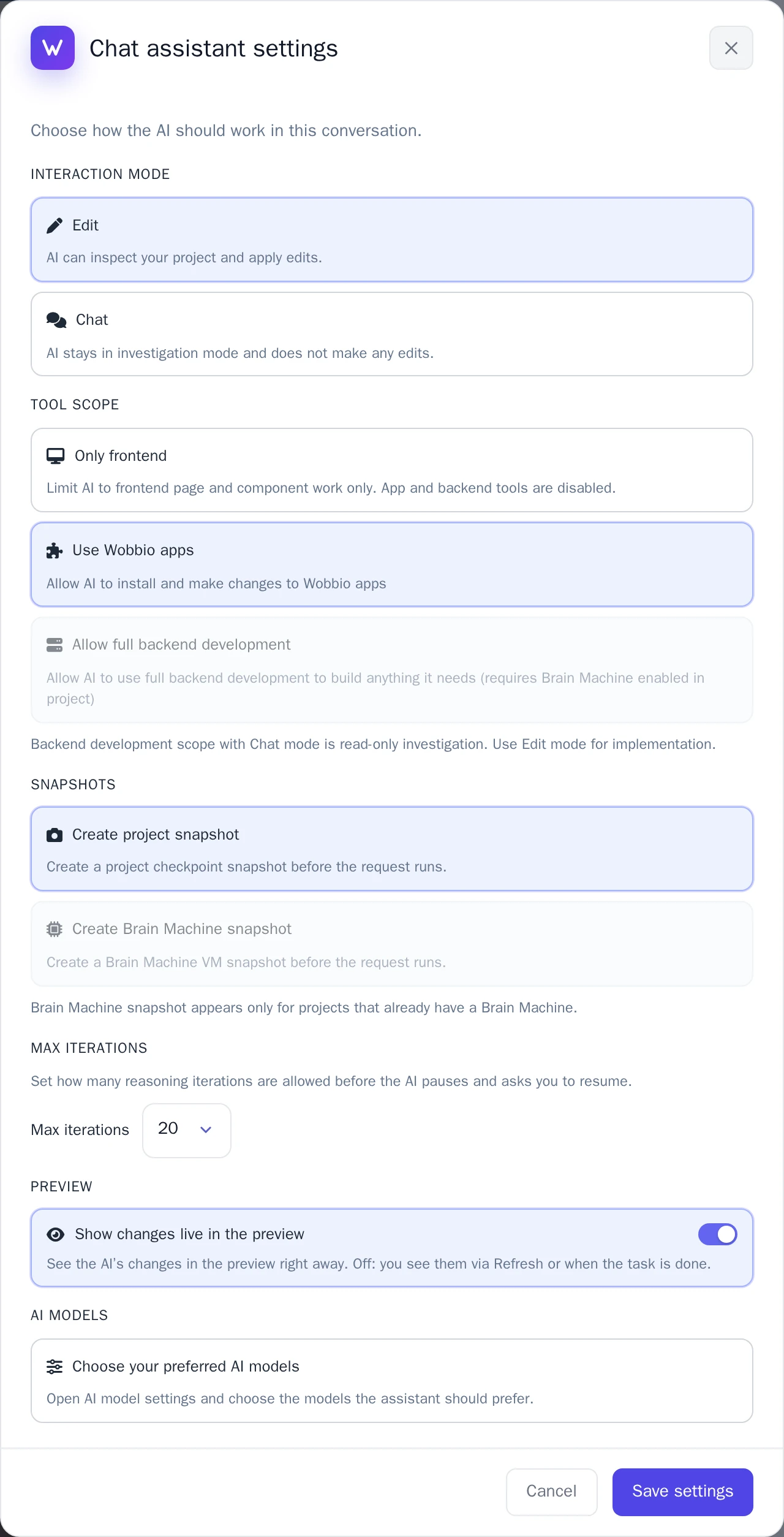
Select the gear to open Chat assistant settings. Besides the choices above, you find:
- Max iterations: how many steps the AI may take before it pauses and asks you to continue. More steps can use more credits. With the scope Frontend + Wobbio apps, the AI may always take at least 40 steps, because adding an app takes more steps.
- Show changes live in the preview: see the AI's changes in the preview right away. When it is off, you see them after a refresh or when the AI is done.
- Choose your preferred AI models: choose which AI models the assistant prefers.
Select Save settings to keep your choices.
Did this help?