Edit page details
Change a page’s Name and its Slug, the part of its address after your domain.
1 min read
Updated 3 Nov 2026
Every page has a Name and a Slug. The Slug is the part of the page’s address after your domain: a page with about there is at yourdomain.com/about. You change both in the Edit page details window.
Open the page details
- In the Pages list, select the page.
-
Select the gear icon next to the page’s name.
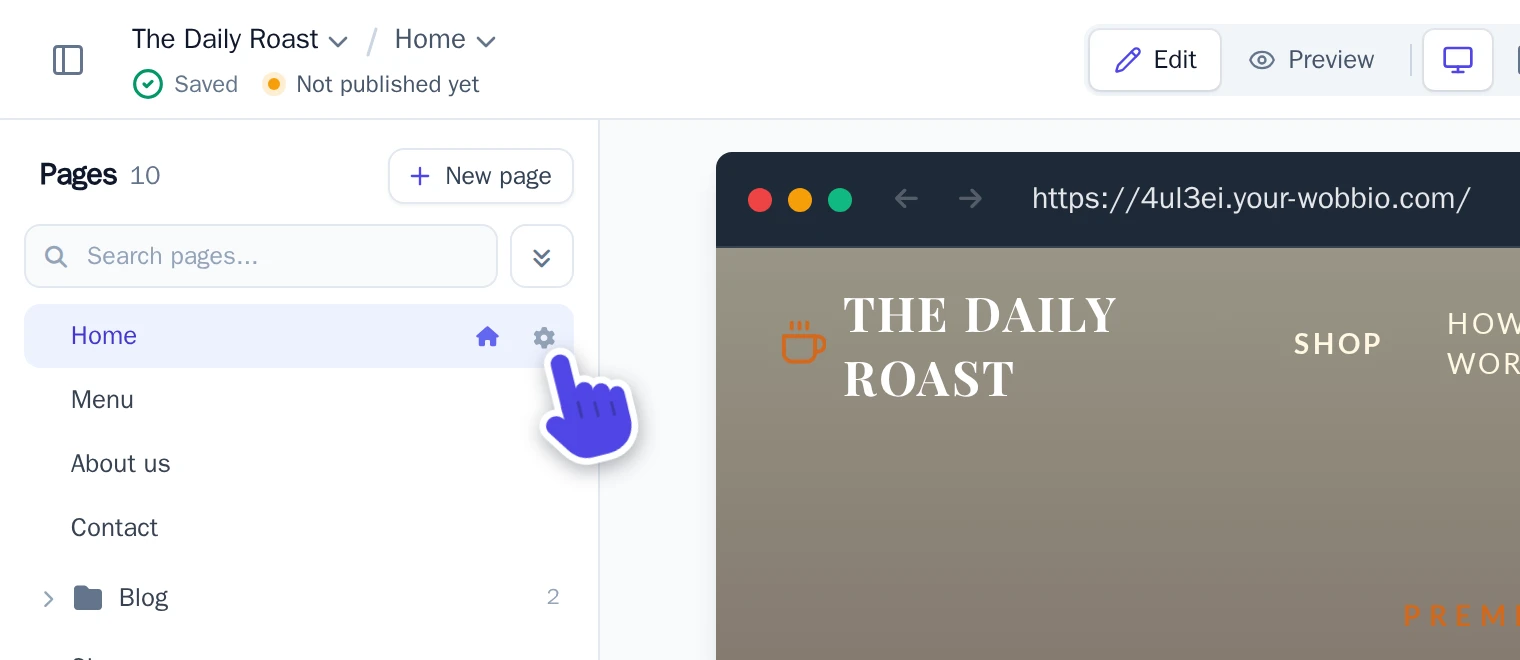
The gear icon opens Edit page details.
Change the Name or Slug
-
Change Name, Slug or both:
- Name: the name of the page in the Pages list.
- Slug: lowercase letters, numbers and dashes. A slash puts the page in a folder, like
blog/our-roastery.
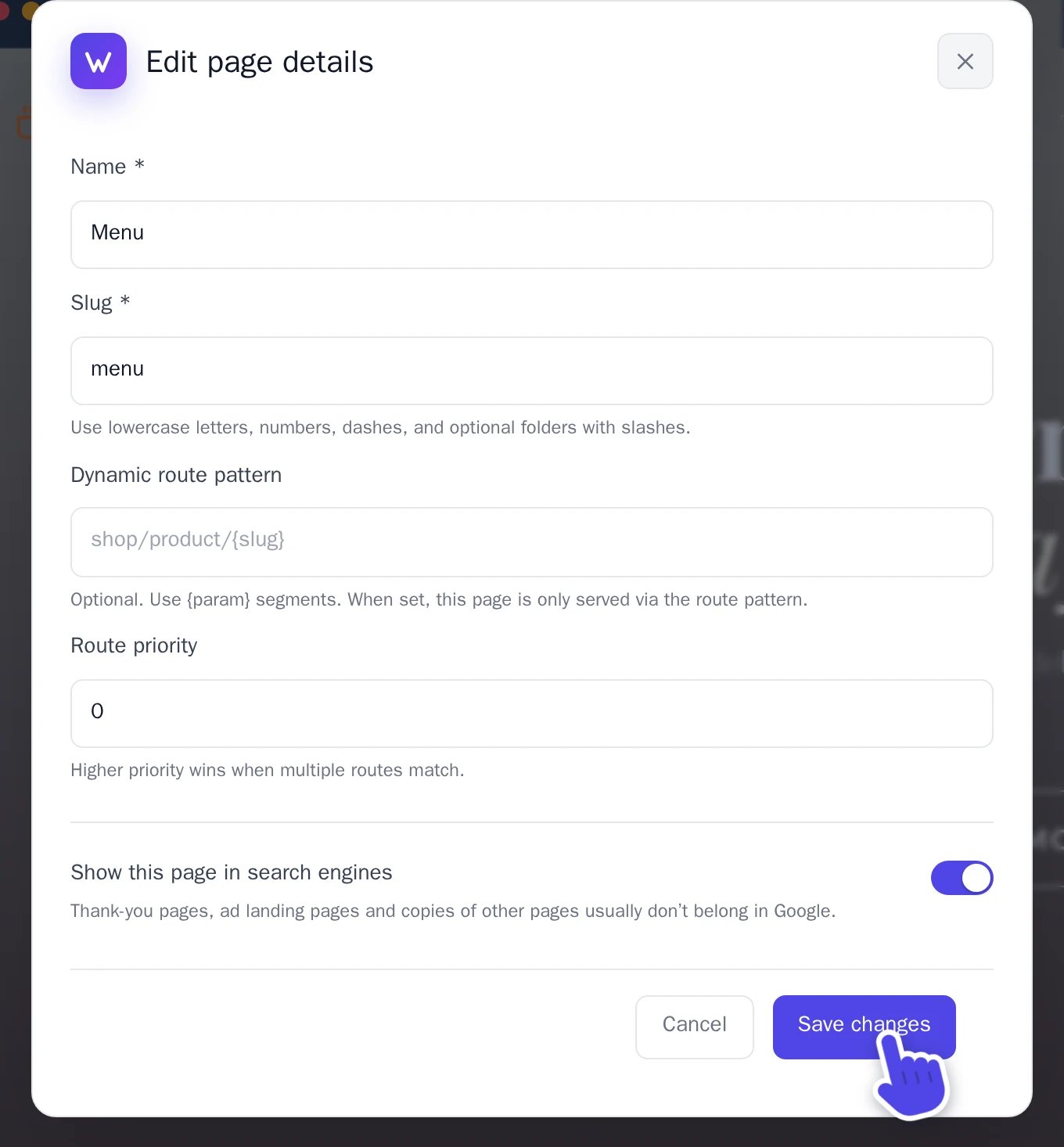
The Edit page details window of a page called Menu. -
Select Save changes.
Keep a page out of search engines
Some pages don’t belong in Google, like a thank-you page after a form. In the same window, turn off Show this page in search engines and select Save changes.
To add a new page instead, see Add a page.
Did this help?