The editor at a glance
Find your way around the editor: the Pages list, the preview, the AI chat and the top bar.
1 min read
Updated 3 Nov 2026
The editor is where you build your website. Your website is in the middle, the tools are around it. The numbers in the picture match the list below.
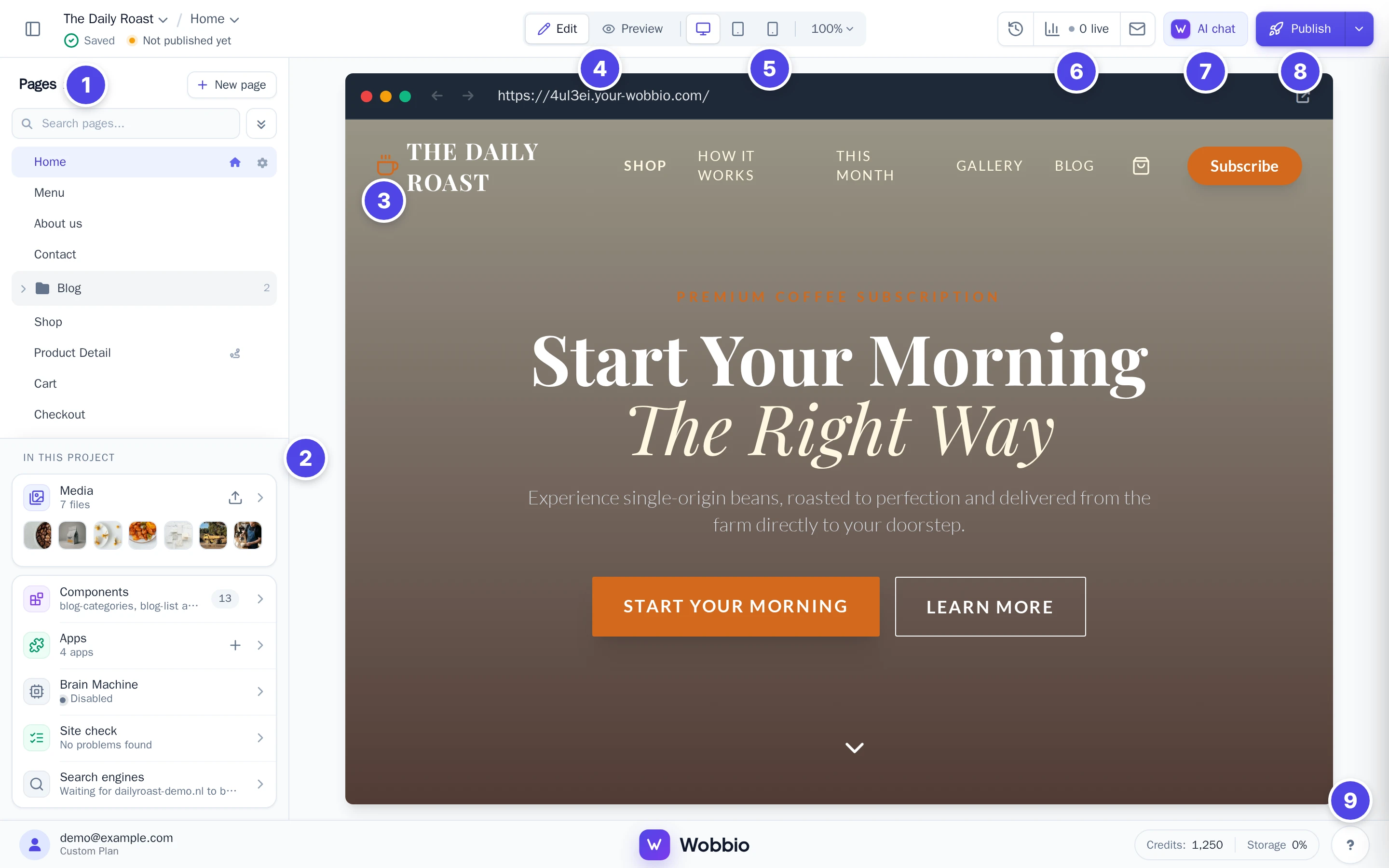
- The Pages list: every page of your website. Select a page to open it in the preview. New page adds a page, see Add a page.
- In this project: your images and other files (Media), the parts that several pages share (Components), your Apps, the Brain Machine, the Site check and Search engines. See Add images: upload or generate with AI, Edit the footer and other shared parts and Add a contact form.
- The preview: the page you are working on, the way visitors see it. The icon at its top right (Open in new tab) opens your website in a new tab.
- Edit and Preview: in Edit you select a part of the page to change it. In Preview you click through your website like a visitor.
- Screen sizes: see the page the way it looks on a computer (Desktop), a tablet (Tablet) or a phone (Mobile). Next to them you can zoom in and out.
- Version history, Statistics and Email management: go back to an earlier version of your website (see Undo changes with version history), see how many people visit it, and manage the email addresses of your domain.
- AI chat: ask the AI for changes in your own words. To choose what the AI may do, see AI chat settings.
- Publish: put your website on your own domain, see Publish your website and Connect your own domain.
- The question mark: help, and the ways to reach our team. Next to it are your Credits and the Storage you use.
Did this help?
Related guides
Pages
Add a page
Add a page with the Create new page window, or ask the AI chat for one.
AI chat
AI chat settings
Choose whether the AI may make changes, what it may work on and whether it saves a restore point first.
Publishing
Publish your website
Your website is online right away at its free subdomain. Publish it to show it on your own domain.