Change text and images yourself
Fix a typo, replace a photo or remove a part of a page in a few clicks, without the AI and without credits.
On this page
Small changes don't need the AI. Select a part of your page in the preview, then change its text or image yourself. This is quicker, and it uses no credits.
Select a part of the page
- Make sure Edit is on at the top of the editor.
- Select the text, button or image you want to change in the preview. A line shows around it.
- A text: you can type in it right away (on a phone or tablet: after Edit text). See below.
- Anything else, like an image: a window opens next to it.
The window has three tabs: Wobbio AI, Change text and Change image. You only see a tab when it fits the part you selected.
Change a text
- Select the text in the preview. You can type in it right away. On a phone or tablet, tap the text, then Edit text (or tap the text again).
- Type the new text.
-
Select Save. To keep the old text, select Cancel.
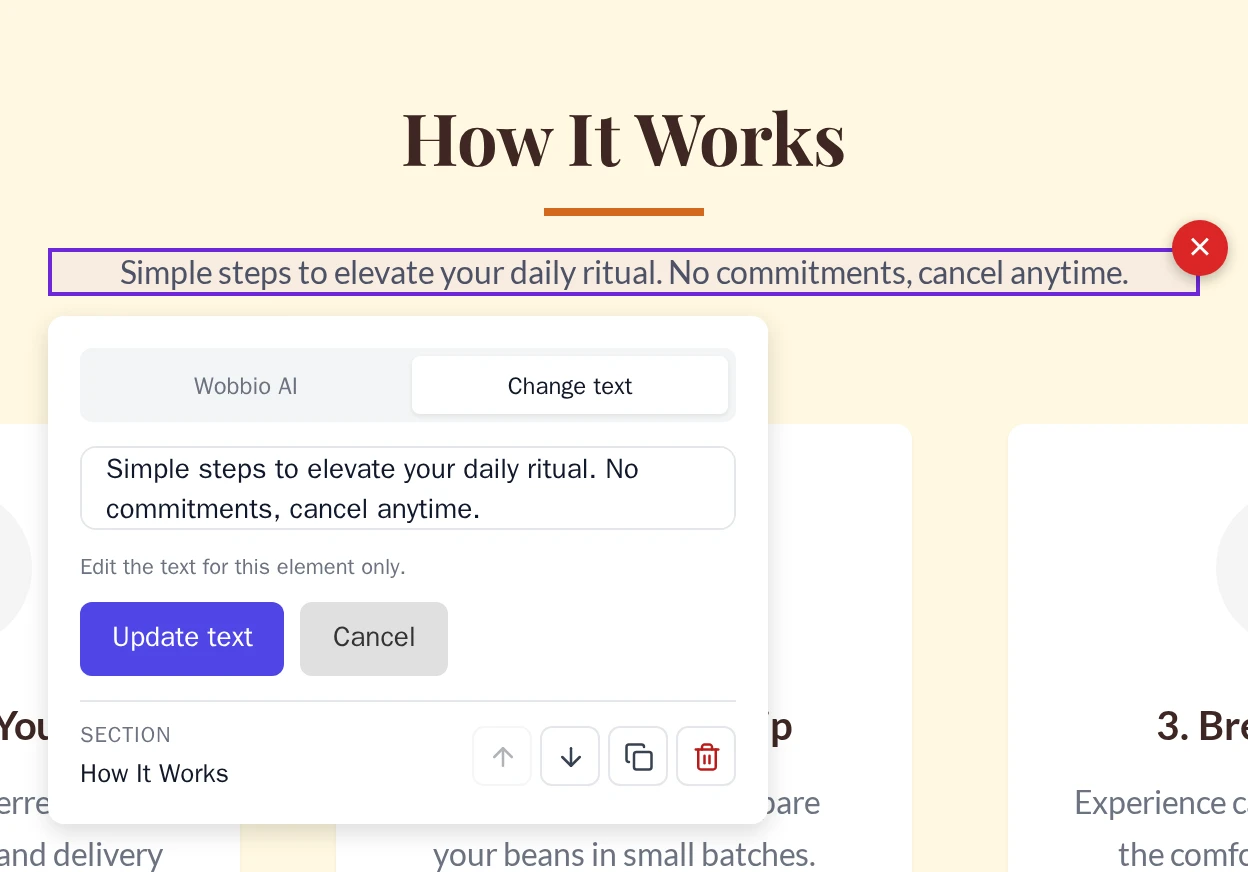
Type in the page, then select Save.
Want the AI to change it instead? Select Ask AI. Your typing is not saved, and the window with the Wobbio AI tab opens.
Good to know:
- Only plain text can be changed this way, up to 5,000 characters. Bold words, links or other parts inside the text stay as they are.
- Does a part contain more than one text, like a card with a heading and a sentence? Then you see This element contains nested elements. Select a text-only element to edit text directly. Select the heading or the sentence itself.
- Text in the menu or the footer is changed on every page, because those parts are shared. See Edit the footer and other shared parts.
- You can change the words of a link or button, but not the page it goes to. Ask the AI for that, see below.
Replace an image
-
Select the image, or any part of the section it is in. Then select the Change image tab.
You see all images of that section, also background images.
-
Select the three dots next to the image you want to replace.
-
Choose what you want:
- Replace: pick an image from your media library. You can also upload a new one there.
- Generate: describe the image you want and the AI makes it. This uses credits; the window shows how many. See Add images: upload or generate with AI.
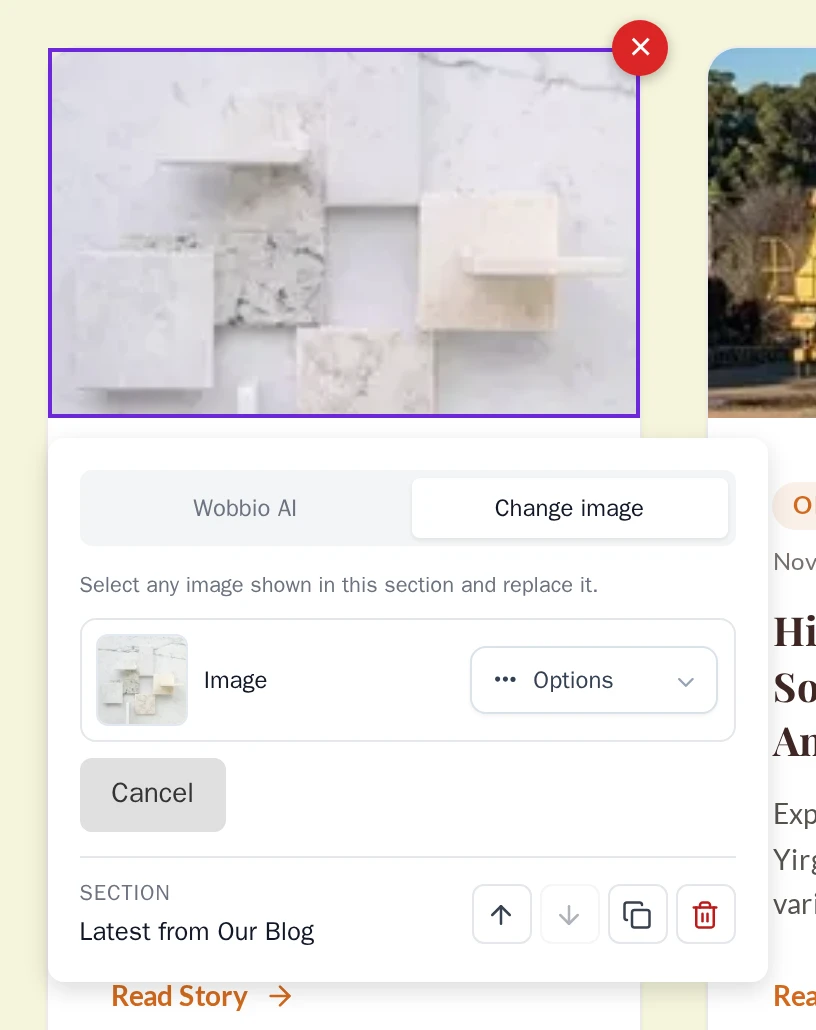
The Change image tab.
The new image is in the page right away. Select the small picture of an image to see it larger.
Delete a part
- Select the part you want to remove.
- Select the red round button with a cross, at the top right of the line around it.
- Select Delete.
Before it deletes anything, Wobbio makes a checkpoint. Deleted the wrong part? Go back with Undo changes with version history. To remove a whole section, see Move, copy or delete a section.
Ask the AI about this part
For anything else, like a link to another page, another colour or a bigger button, use the Wobbio AI tab:
- Select the part, then the Wobbio AI tab. For a text, select Ask AI.
- Describe the change, for example “Link this button to the Contact page”.
- Select Update.
The AI knows which part you selected, so you don't have to describe where it is. This starts a new chat in the AI chat and uses credits. See Get the result you want from the AI.