Move, copy or delete a section
Change the order of the parts of a page, copy one, or remove it yourself, without the AI and without credits.
On this page
A page is made of sections: blocks one below the other, like a heading with three steps, a photo gallery or your latest blog posts. You can move, copy and delete them yourself. This uses no credits.
The menu at the top and the footer are not sections: they are on every page. See Edit the footer and other shared parts.
Show the section buttons
- Make sure Edit is on at the top of the editor.
-
Move the mouse over a section in the preview. A dashed line shows where the section starts and ends. At its top right are its name and the buttons Move up, Move down, Duplicate and Delete.
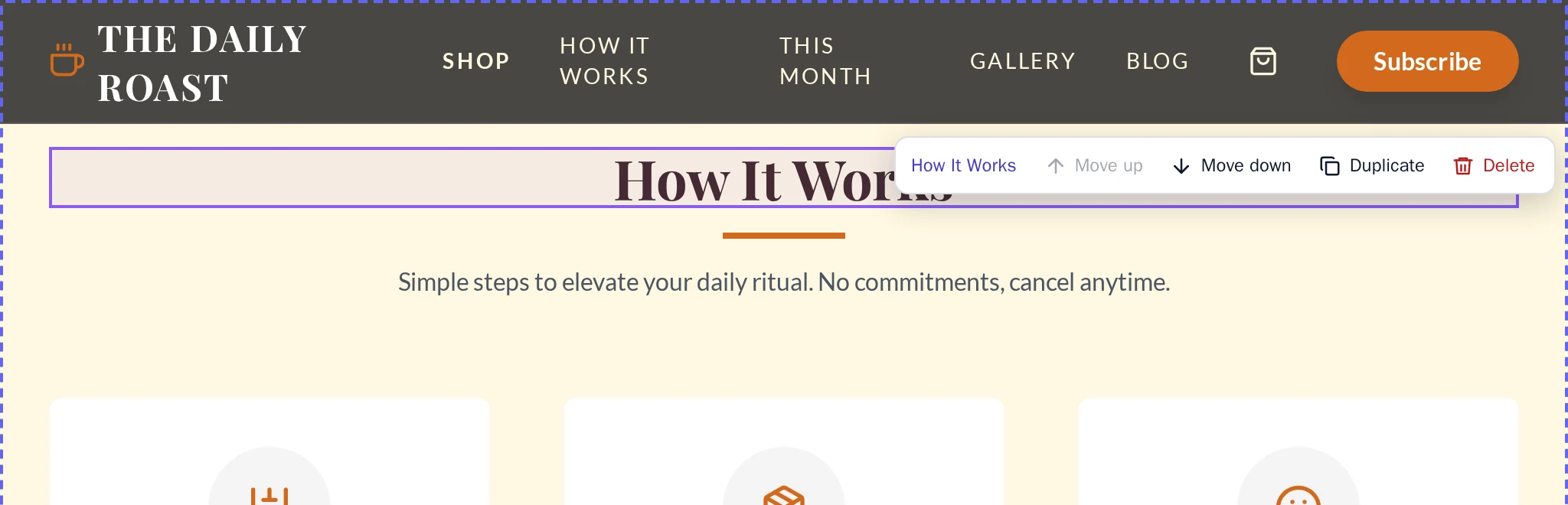
The buttons of a section.
A grey button can't be used for this section. Point at it to see why, for example This is the first section.
Move a section
Select Move up or Move down. The section moves one place each time.
Copy a section
Select Duplicate. The copy appears right below the section.
Some sections work together with a script on the page, like a slider or a form. A plain copy of those may not work, so Wobbio asks Copy this section?
- Copy with AI: the AI makes a copy that works too. This opens the AI chat and uses credits.
- Copy anyway: copy it as it is.
Add a copy of another section
- Point at the section where the new one should go. Select the plus on its top edge (Add a section above) or bottom edge (Add a section below).
- The Add a section window shows the sections of this page and of your other pages.
-
Select Add on the section you want. A copy of it is placed there.
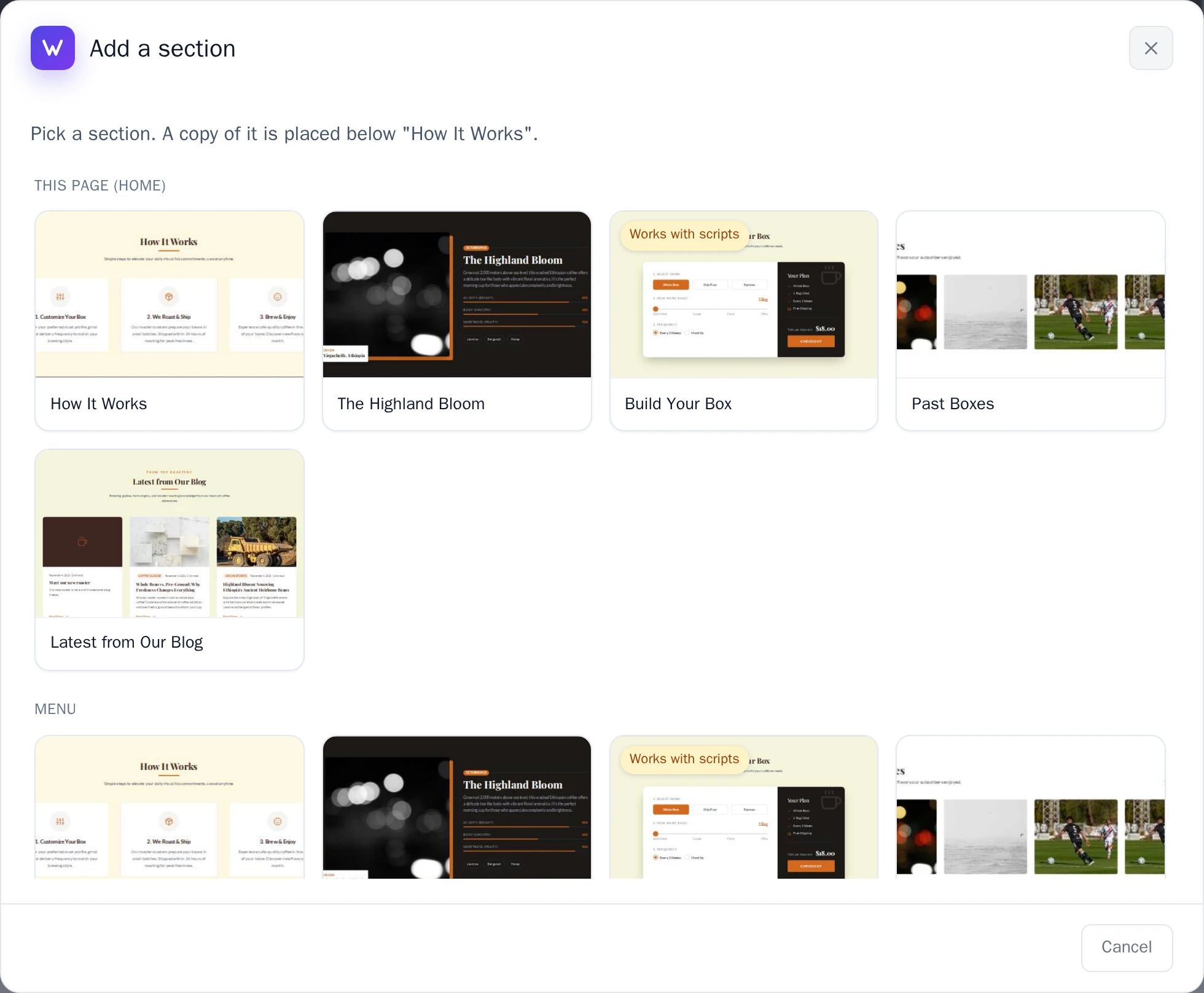
The Add a section window.
Delete a section
Select Delete, then Yes.
Undo a change
After each change, a message with Undo shows for a few seconds. Select it to undo the change.
Missed it? Before it deletes a section, Wobbio makes a checkpoint, so you can still go back with Undo changes with version history.
Your changes are saved right away. Publish your website to put them online.