Email on your own domain
Create email addresses like info@example.com, forward email and read it in your browser or your mail app.
On this page
With your own domain, you can have email addresses like info@example.com. You turn on email for the domain, create the addresses you need, and read your email in your browser or in a mail app on your computer or phone.
Open the email window
- At the top right of the editor, select the envelope icon, Email management. On a phone, it is in the menu behind the arrow next to Publish.
- The Email management window opens. At the top, choose your domain. The list shows the domains of all your websites that can have email.
If the list says No verified domains, connect and verify a domain first.
Turn on email
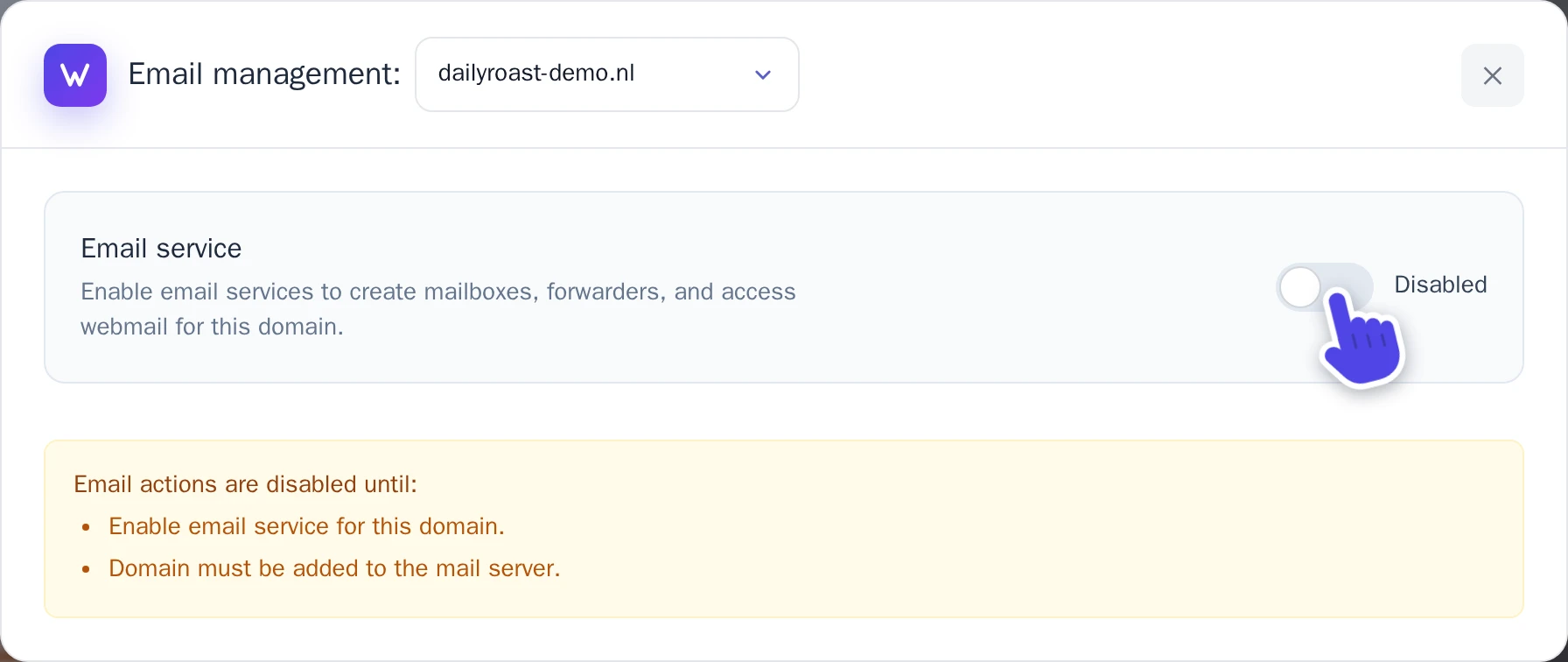
- Turn on the switch next to Email service. It now says Active.
- If the window shows DNS records missing, add those records in the DNS settings of your domain, the same way as in Set the DNS records. Copy the values from your own window.
The email records make sure email for your domain arrives at Wobbio, and that the email you send can be trusted. You also see them in the Publish & domains window: select Add email records under your domain.
Create an email address
-
On the Mailboxes tab, select Create account. The Create email account window opens.
-
Under Email address, type the part before the @, like
info. Use lowercase letters, numbers, dots, dashes or underscores. -
Under Password, choose a password of at least 8 characters, with an uppercase letter, a lowercase letter, a number and a special character. You need it to sign in, so keep it somewhere safe.
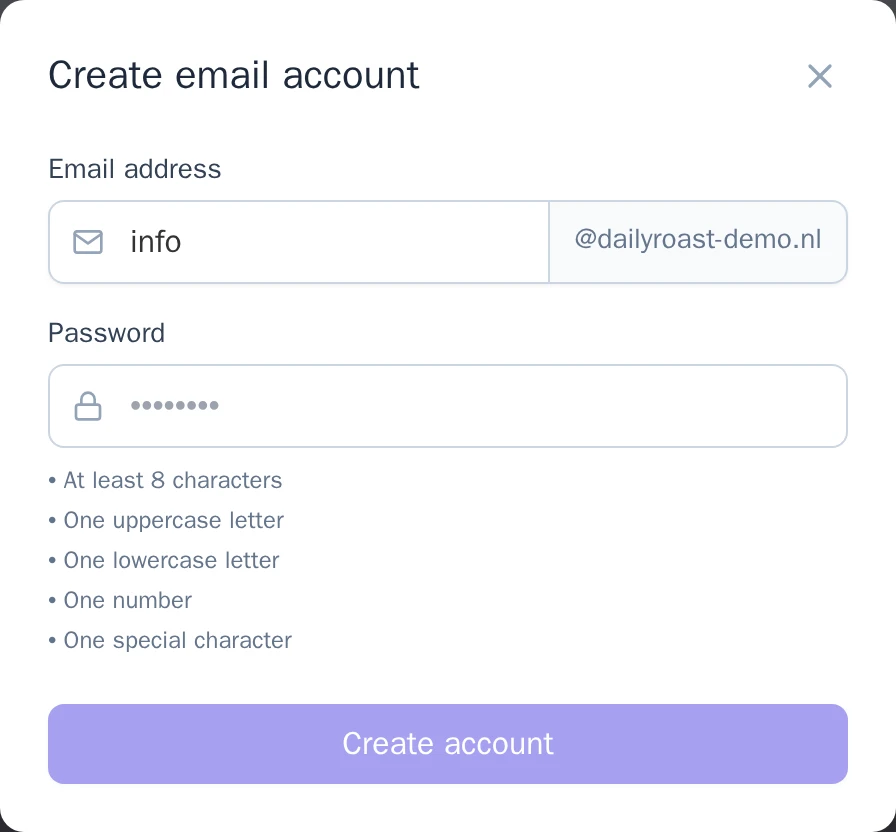
The Create email account window. -
Select Create account.
The new address shows up in the list. Next to it, select Change password to choose a new password, or Delete to remove the address.
Read and send email
- In your browser: select Access webmail. The webmail opens in a new tab. Sign in with the full email address and its password.
- In a mail app, like Outlook, Apple Mail, Thunderbird or the mail app on your phone: open the Server settings tab. It shows the server names and ports for Incoming server (IMAP), Incoming server (POP3) and Outgoing server (SMTP). Your username is the full email address, and the password is the one of that address, for incoming and outgoing email.
Forward email
A forwarder is an address without its own mailbox: email sent to it goes to one or more of your email addresses.
- On the Forwarders tab, under Email forwarders, select Add. The Add email forwarder window opens.
- Under Forward address, type the part before the @, like
sales. It can't be an address that already has a mailbox. - Under Destination email, type where the email should go. For more than one address, put commas between them.
- Select Add forwarder.
Catch email sent to any address
Someone may mistype your address, like infp@example.com. With a catch-all, that email still reaches you.
- On the Forwarders tab, under Catch-all address, choose one of your email addresses. With Disabled (reject), email to addresses that don't exist is refused.
- Select Save.
Bring your old email along
Moving from another email provider? You can copy the email of an old mailbox into a new one.
- Create the new email address first, as in Create an email address.
- Select Import email. The Import email window opens.
- Fill in the details of your old mailbox: External IMAP server (your old provider tells you this, it looks like
imap.example.com), External username and External password. - Under Local mailbox, choose the new address, and type its password under Local mailbox password.
- Select Start import.
The import runs in the background, so you can close the window. On the Imports tab you see how far it is: Queued, Running, Completed or Failed, with the number of Messages. You can run one import at a time per email address.