Protect your account
Turn on Two-factor sign-in with an authenticator app, keep backup codes, and change your email address or password.
On this page
To open your settings, select your account at the bottom left of the editor, then Settings. Everything about signing in to Wobbio is there.
Turn on Two-factor sign-in
With Two-factor sign-in, Wobbio asks for a 6-digit code from an app on your phone each time you sign in: after your password, the email code or Google. Someone who knows your password still can't get in. You need an authenticator app, like Google Authenticator, Microsoft Authenticator or 1Password.
-
In your settings, select Security.
-
Select Turn on two-factor sign-in. Wobbio emails you a code.
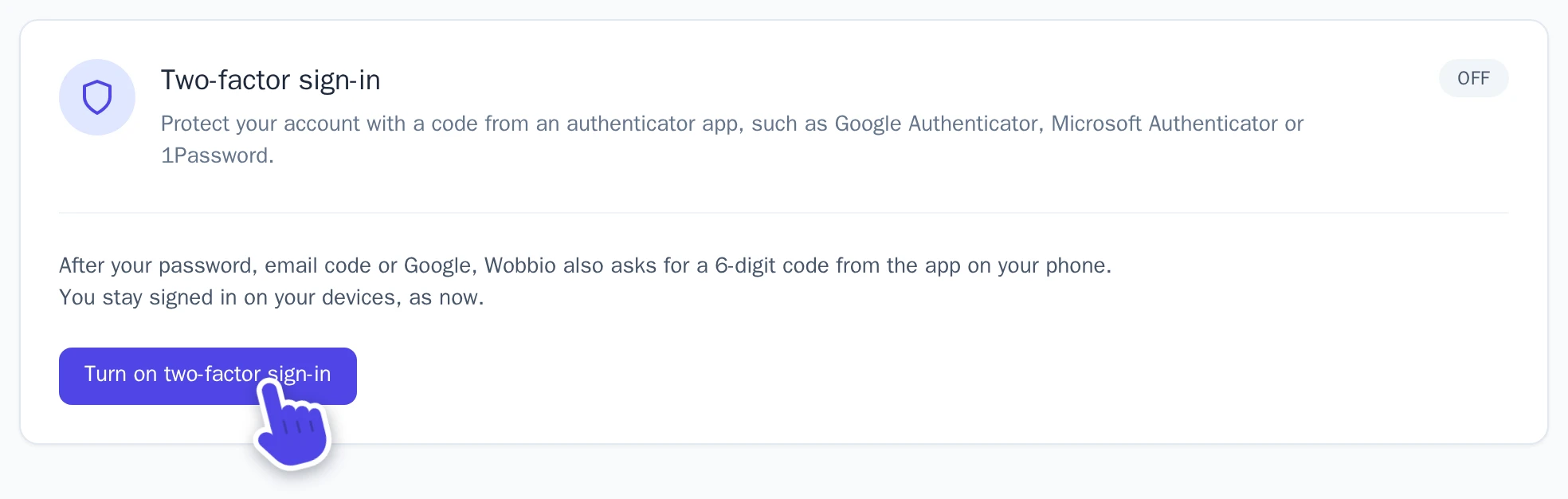
Security in your settings. -
Under Code from the email, enter the code and select Continue.
-
In your authenticator app, add an account and scan the QR code. Can't scan it? Select Copy key and enter the key in the app.
-
Under The 6-digit code the app shows, enter the code and select Turn on.
-
Save your 10 backup codes: select Copy codes or Download as .txt. They are shown only this once.
-
Select I saved my backup codes, then Done.
Wobbio signs you out on your other devices and emails you that Two-factor sign-in is on. Sign in there again, with a code from the app.
Sign in with a code
After your password, email code or Google, the Two-factor sign-in screen opens. Enter the 6-digit code your app shows now and select Verify. Each code works once; the app shows a new one every 30 seconds.
Backup codes and a lost phone
A backup code signs you in once without your phone. On the Two-factor sign-in screen, select Use a backup code instead and enter one. Wobbio emails you each time a backup code is used, with how many you have left.
To get 10 new codes, select New backup codes under Security, enter a code from the app or a backup code, and select Make new codes. Your old codes stop working.
Lost your phone, or got a new one? Sign in with a backup code. Then, under Security:
- Select Turn off.
- Enter a backup code under Code from your app or a backup code.
- Select Email me a code, and enter the emailed code under Code from the email.
- Select Turn off two-factor sign-in.
- Turn it on again with your new phone. You get new backup codes too.
Change your email address
- In your settings, select General account.
- Under Email address, select Change email address.
- Under New email address, enter the address and select Send code.
- Wobbio emails a code to your current address. Enter it under Code from current email and select Verify current email.
-
Then a code goes to your new address. Enter it under Code from new email and select Verify new email.
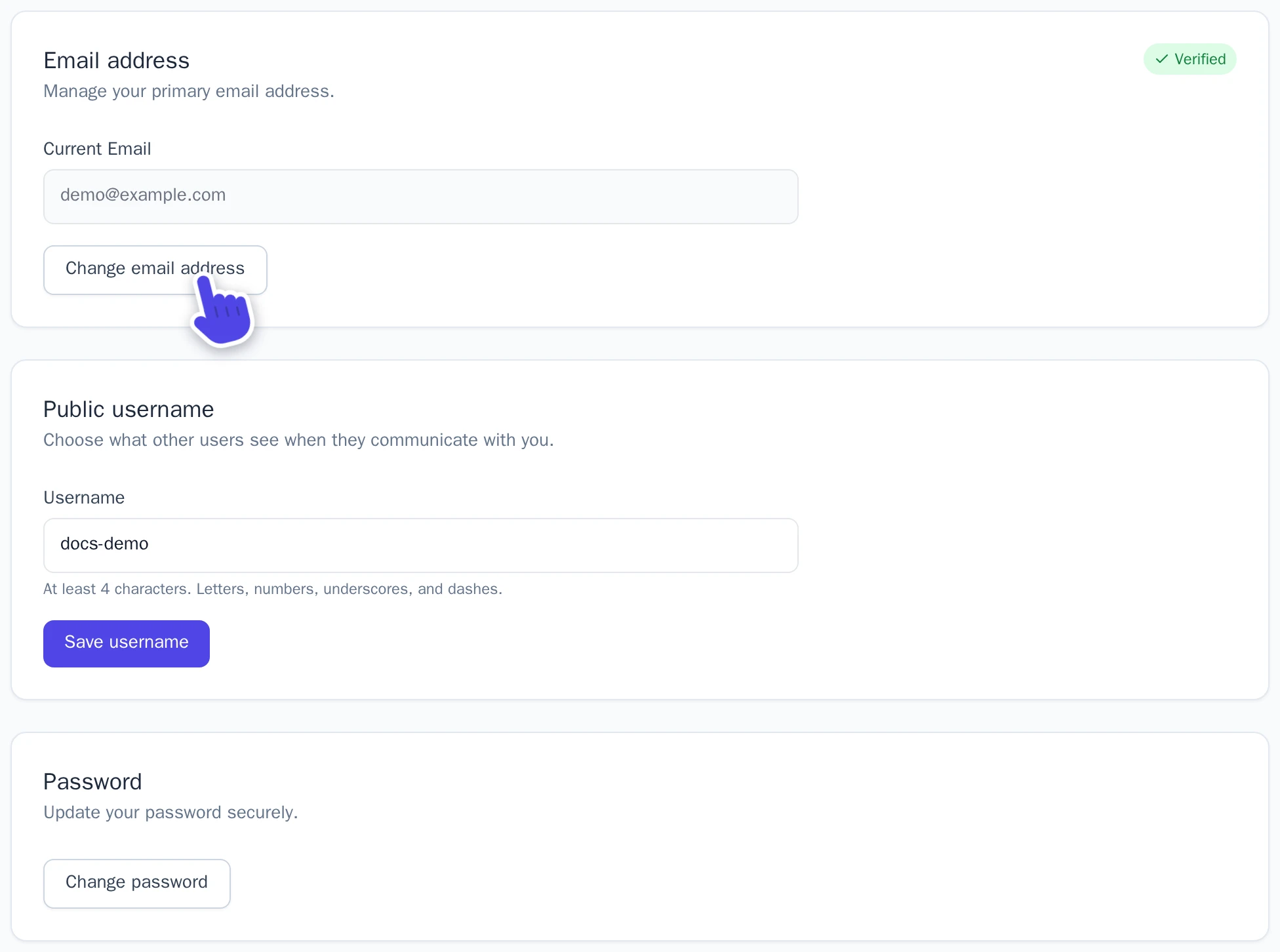
Email address and Password in your settings.
From then on, you sign in with your new address. The codes work for 10 minutes; if one expired, select Resend code.
Change your password
- In your settings, under General account, select Change password.
- Enter your New password twice, at least 6 characters, and select Update password.
- Wobbio emails you a code. Enter it under Confirmation code and select Verify & save.
Billing details and invoices
Your name, address and, if you buy as a business, your company name and VAT number are under Billing details in your settings. Change them and select Save changes. Automatic top-up of credits only works with complete billing details.
Your invoices are under Billing & plans: select View invoices. For plans and credits, see Credits and your subscription.