Organise your media library
Put your files in folders, find them quickly, choose what the AI may look at, and delete what you no longer use.
On this page
All the images, videos and documents of your account are in your media library. Folders, search and filters help you find a file, and you choose which files the AI can look at.
Open your media library
In the editor's side menu, under In this project, select Media. To go back, select Back to editor at the top left.
How folders work
Your folders are on the left, under File storage. The top folder, User, belongs to your account, so you can use its files on all your websites.
When you open the media library from a website, you only see the folders that website can use. To see all your folders, select the link in the note below them.
Make a folder
- Select the folder the new folder should go in, for example User.
- Select the plus next to File storage. The New folder window opens.
- Type a Folder name, like “Products”.
- Under Project access, select the websites whose AI may use the files in this folder.
- Turn on Folder AI access if the AI may look at the files in this folder.
-
Select Create.
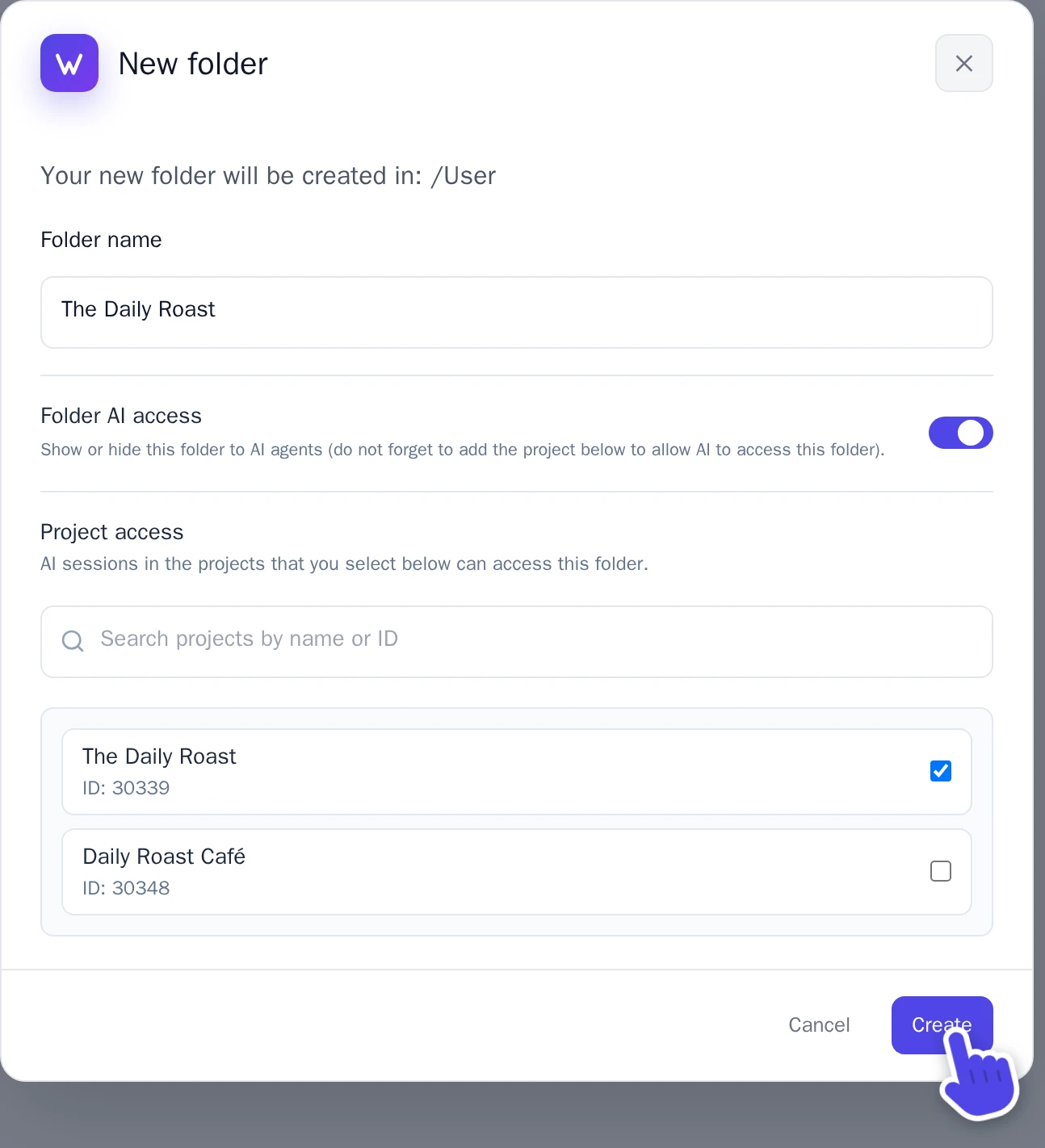
The New folder window.
Folders can go three levels deep. To rename a folder or change which websites can use it, point at the folder and select the gear next to it (Edit folder).
Move files to another folder
- Right-click a file and select Move to folder. To move several files, select the box on each file, then Move at the top.
- Choose the folder under Folder.
- Select Move.
Pages that use the files keep working. But which websites and AI can use a file depends on its folder, so check that after the move.
Delete a folder
- Point at the folder and select the gear next to it.
- Select Delete folder, then confirm.
Only an empty folder can be deleted, so move or delete its files and folders first. The folder of a website itself can't be deleted.
Find a file
- Search: type part of the file name in Search... at the top. This searches the folder that is open.
- Grid or list: the two buttons next to the search box switch between Grid view and List view.
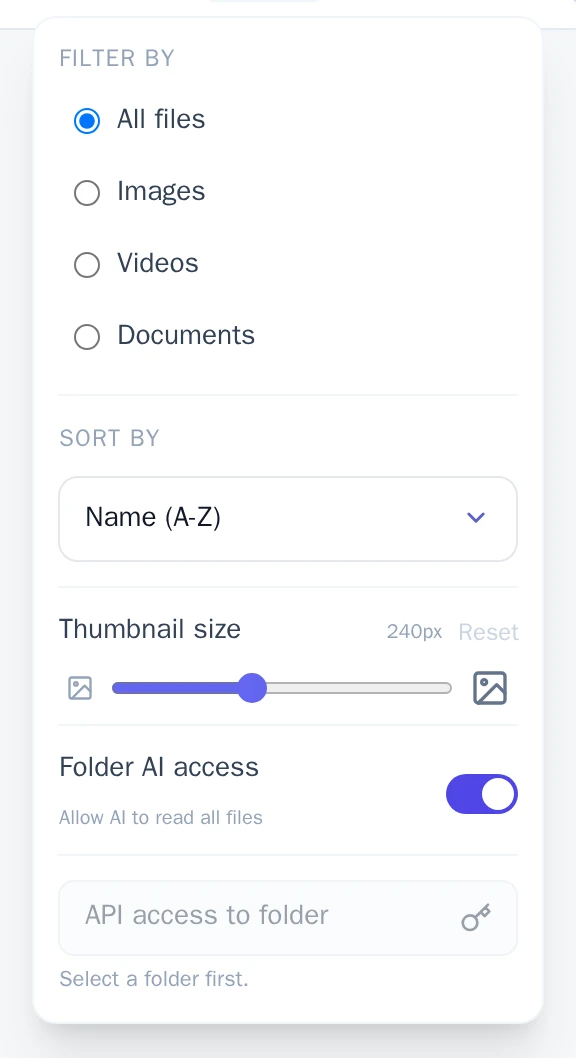
- Filter and sort: select Options. Under Filter by, show only Images, Videos or Documents. Under Sort by, sort by name, size, type or date. With Thumbnail size, make the previews bigger or smaller.
Choose what the AI can look at
The AI can look at what is on your images, which helps it pick the right one for a page. You decide which files it sees:
- One file: select the file, then turn Visible to AI on or off in the File details. Files the AI can see have a small AI label.
- A whole folder: open the folder, select Options and turn Folder AI access on or off.
See where a file is used
Select a file. Under Used on pages, the File details list the pages and components that use it.
Delete files
- To delete one file, select it, then Delete file. To delete several, select the box on each file, then Delete at the top.
- Confirm in the window that opens.
The image you use as your website's icon can't be deleted. Remove it first, see Change your website's icon (favicon).
Storage
At the bottom left, Storage shows how much space your files use. A file can be up to 30 MB. Need more space? Add Extra storage to your subscription, see Credits and your subscription.