Change your website's icon (favicon)
Add the small icon that shows in browser tabs and bookmarks, and publish it to your website.
On this page
The favicon is the small icon next to your website's name in the browser tab and in bookmarks. Phones also show it when someone adds your website to their home screen.
Add or change the icon
-
At the top left of the editor, select your website's name. A menu opens.
-
Select Edit project details. The Edit project details window opens.
-
Under Favicon, select Choose image and choose the image. If your website already has an icon, the button reads Replace.
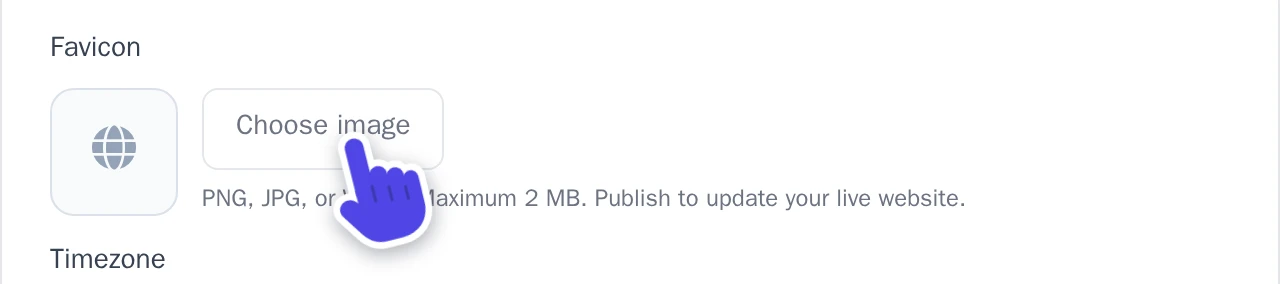
Favicon in the Edit project details window. -
Select Save changes.
-
Publish your website. Until you do, your live website keeps its old icon.
Wobbio places your image in a square without cutting anything off. A wide logo gets empty space above and below it, so a square image looks best.
Remove the icon
- Open the Edit project details window again, as above.
- Under Favicon, select Remove, then Save changes.
- Publish your website.
Without an icon of your own, visitors see the icon that comes with your website's design, if it has one, or their browser's standard icon.
The icon is also saved in your media library. It can't be deleted there while it is your website's icon.