Check your website before you publish
The Site check finds broken links, missing images and sections, images without alt text and search engine problems. Fix them yourself or let the AI fix them.
On this page
The Site check looks at every page of your website and lists what is broken or missing. It only reads your website: opening it changes nothing and uses no credits.
Open the Site check
-
In the side menu, under In this project, select Site check. The line under it already shows how many errors and warnings there are, or No problems found.
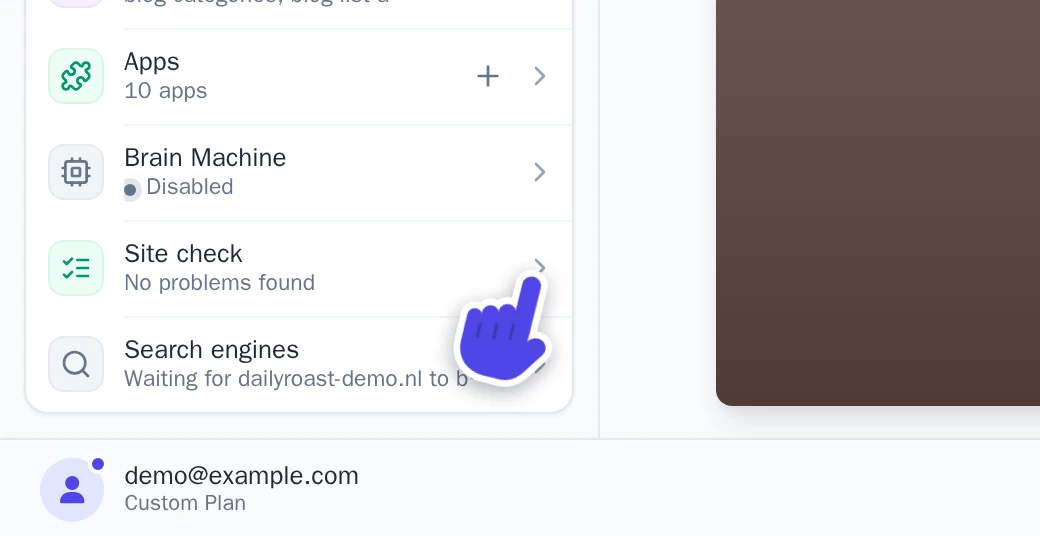
Site check is in the side menu, under In this project. -
The panel lists the problems per page. Problems in a part that several pages share, like the menu or the footer, are listed once, for all those pages. Problems with the whole website come first.
-
After you fixed something, select Check again. When nothing is left, the panel says All clear.
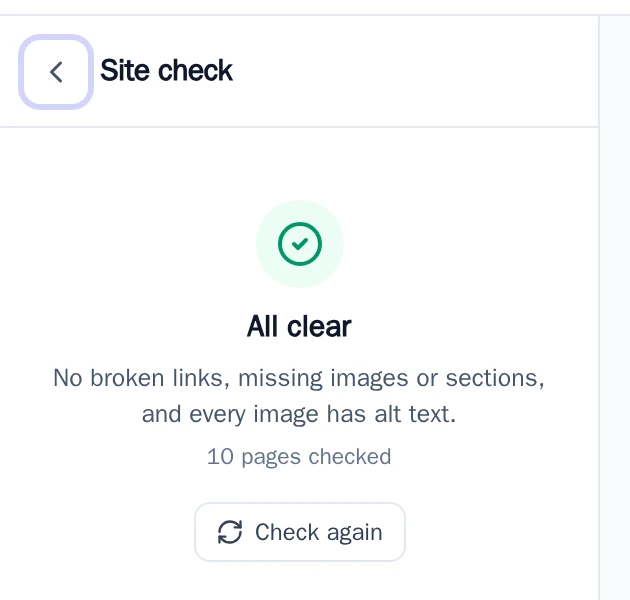
The Site check panel when it finds no problems.
You also see the Site check in two other places: the Publish & domains window says how many problems it found (see Publish your website), and after the AI chat changed your website, its answer says whether that added a new problem.
What the site check finds
Errors are things your visitors run into. Warnings are worth fixing, but nothing looks broken.
- Broken link (error): a link goes to a page that does not exist, to an address without
https://, or to a file that is not on your website. - Missing image (error): an image does not show, for example because it was deleted from your Media.
- Missing section (error): a page shows a shared part that no longer exists. If the part exists but is empty, this is a warning.
- Link to a missing section (warning): a link jumps to a place on a page that is not there.
- Image without alt text (warning): an image has no short description for people who use a screen reader, and for search engines.
- Hidden page in the menu (warning): the menu links to a page that is hidden from search engines.
Once your website is on your own domain, the check also looks at search engines:
- Website hidden from search engines (warning): search engines are asked not to show your website.
- robots.txt blocks your whole website (error): your own robots.txt keeps search engines out of your whole website.
- Copy of your website on another domain (warning): a second domain shows the same website instead of sending visitors to your main domain.
Fix a problem
Each problem has buttons for what you can do:
- Show: opens the page and points at the problem in the preview.
- Choose image: for a missing image, pick another one from your Media. See Add images: upload or generate with AI.
- Let AI fix: the AI chat opens with a request to fix exactly this problem, and nothing else. When a page has more problems, Let AI fix all fixes them in one go.
- Search engines: opens Search engines. Turn on Show this page in search engines for a hidden page, or Show in search engines for your whole website, when it is ready. See Get found on Google and Bing.
- Domains: opens the Publish & domains window. Set the second domain to Redirect to primary.