Work on more than one website
Switch between your websites, find one by its name, rename it or start a new one.
You can make as many websites as you like with one account. Each website has its own pages, apps, domain and version history. Your credits, your subscription and the User folder of your media library are shared by all your websites.
Switch to another website
- At the top left of the editor, select your website's name. A menu with your websites opens. The one you are working on has a check mark.
- Select another website. It opens in the editor.
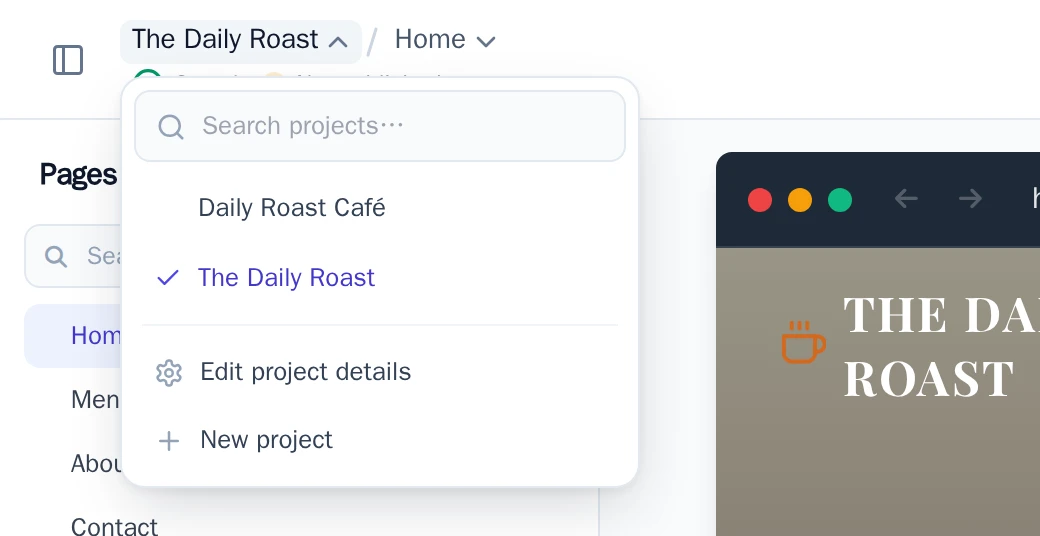
Have many websites? Type part of a name in Search projects… at the top of the menu, then select the website, or press Enter for the first one.
A website the AI is still making shows Generating… or Setting up…. Wait until that goes away before you change it.
Rename a website
- Open the website, then the menu with its name.
- Select Edit project details.
- Change Name. Under Description, you can add a note for yourself.
- Select Save changes.
The name is only for you, in the editor. It doesn't change your website's address or what visitors see.
In the same window, Timezone sets the time used for bookings, notifications and dates. Under Favicon, you set the website's icon, see Change your website's icon (favicon).
Start a new website
In the same menu, select New project. Then follow Start a website from a template or a description.
Delete a website
See Delete a website.